Deployment Overview
This document describes how to set up multi-factor authentication (MFA) for SAP Concur with AuthPoint as an identity provider. SAP Concur must already be configured and deployed before you set up MFA with AuthPoint.
SAP Concur can be configured to support MFA in several modes. For this integration, we set up SAML with AuthPoint. This integration was tested with the cloud-based version of Concur.
SAP Concur supports both service provider initiated SSO and identity provider initiated SSO. This integration uses service provider initiated SSO as an example.
Contents
SAP Concur Authentication Data Flow with AuthPoint
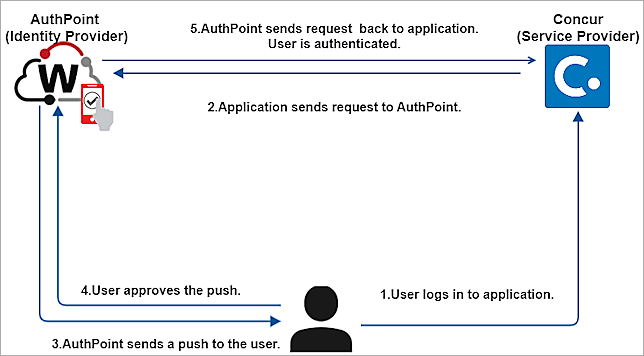
AuthPoint communicates with various cloud-based services and service providers using the SAML protocol. This diagram shows the data flow of an MFA transaction with SAP Concur.
Before You Begin
Before you begin these procedures, make sure that:
- End-users can log in to SAP Concur.
- A user is assigned to a token in AuthPoint.
- You have an AuthPoint identity provider (IdP) certificate (go to Certificate Management)
Configure Concur
Manage Single Sign-On
You must first download the metadata file from the Certificate Management page in the AuthPoint management UI. When you have the file, you can configure AuthPoint for SAP Concur.
To download the metadata file:
- Log in to WatchGuard Cloud.
- Click Configure > AuthPoint. If you have a Service Provider account, you must select an account from Account Manager.
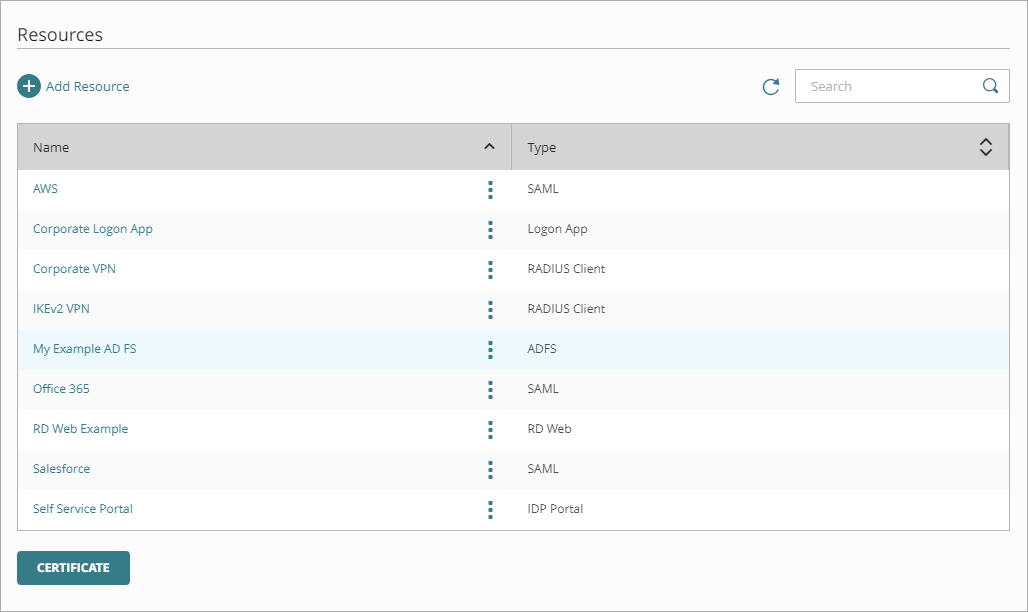
- From the navigation menu, select Resources.
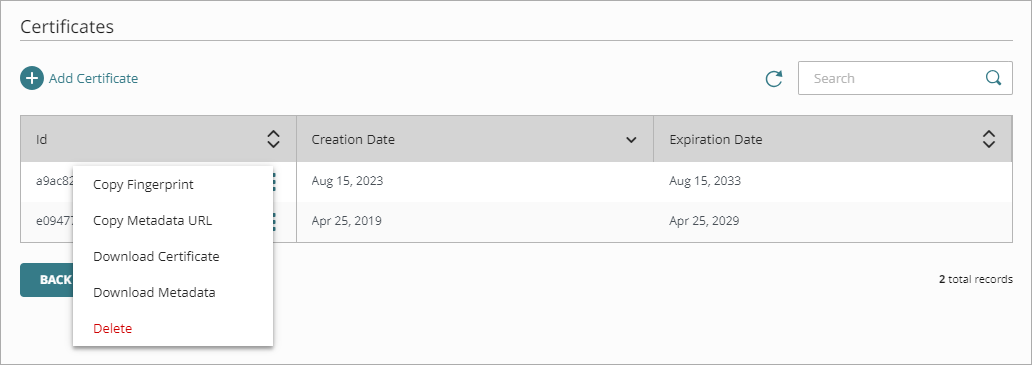
- Click Certificate.
- Next to the AuthPoint certificate you will associate with your resource, click
 and select Download Metadata. We recommend that you choose the certificate with the latest expiration date. If you do not have a certificate, or if all of your certificates have expired, click Add Certificate and use the newly created certificate. For more information, see Certificate Management.
The AuthPoint metadata provides Concur with the information necessary to identify AuthPoint as a trusted identity provider.
- Log in to the SAP Concur portal.
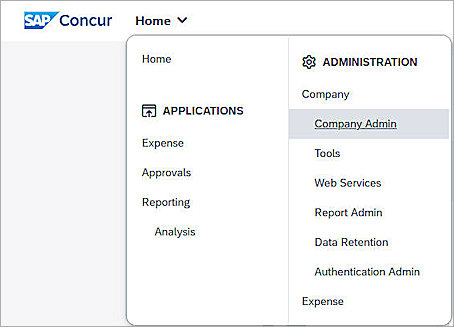
- Expand the Home navigation bar.
- In the Administration section, select Company > Authentication Admin.
The Authentication Administration page opens.

- Click Manage Single Sign-On.
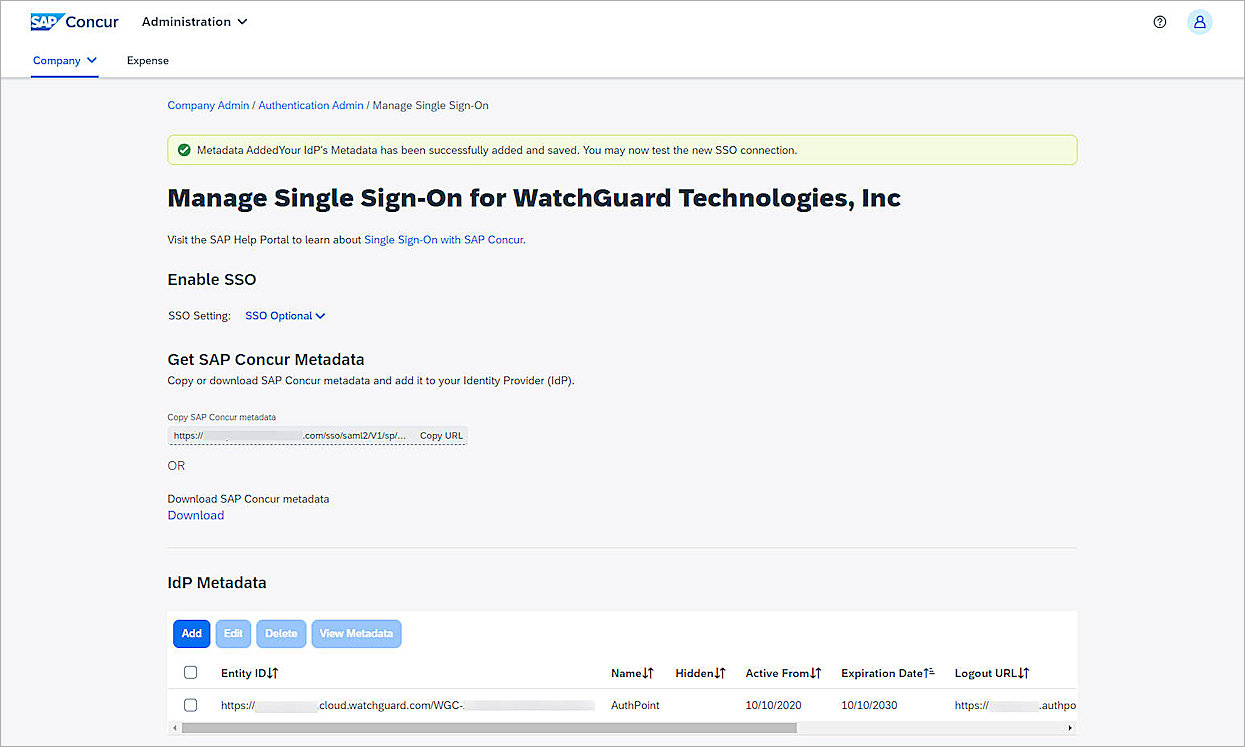
The Manage Single Sign-On page opens.
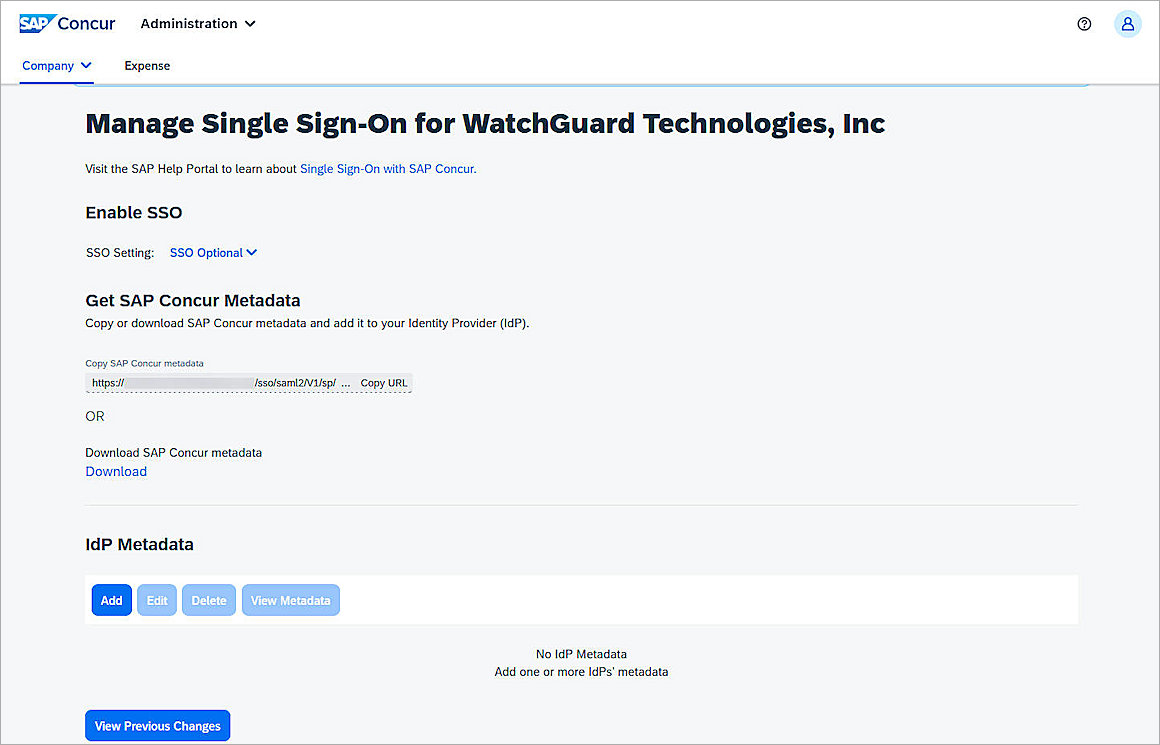
- In the Get SAP Concur Metadata section, copy the SAP Concur metadata URL and then paste the URL in a browser tab to open the metadata file in your browser.
You can also download the SAP Concur metadata file for AuthPoint configuration. - From the metadata, copy the values for the entityID, SingleLogoutService Location, and AssertionConsumerService Location. These values are used to configure AuthPoint in the next section.
- In the IdP Metadata section, click Add.
The Add IdP Metadata page opens. - In the Custom IdP Name text box, type a name. In this example, we type AuthPoint.
- Open the AuthPoint metadata file that you downloaded, and copy the SingleLogoutService Location value.
- In the Logout URL text box, paste the SingleLogoutService Location value.
- Click Upload XML File to upload the AuthPoint metadata file you downloaded previously.

- Click Add Metadata.
- Click OK.
Create a New User Profile in SAP Concur
The SAP Concur site administrator for your company will take information from either the HR or Payroll department to set up your SAP Concur profile. Once your profile is created, you should receive an email notification. The email will contain your assigned user name and a link to reset your password. The password reset link is only valid for 24 hours. After that, you must contact the SAP Concur site administrators at your company for assistance.
The steps in this section describe how to manually create a new SAP Concur user profile to serve as an SSO test user:
- Log in to the SAP Concur portal.
- Expand the Home navigation bar.
- In the Administration section, select Company > Company Admin.
- In the User Administration section, click Add User.
- In the Roles section, select one or more roles.
- In the General Settings section, for CTE Login Name, enter a login ID with a valid domain. The Login ID must be unique. The system notifies you if the login ID is already in use.
- In the Password text box, type a temporary password for the user.
- In the Verify Password text box, type the temporary password again.
- Enter the employee's First name and Last Name.
-
In the Employee ID text box, type the employee's identification number.
If your company assigns employees ID numbers in your HR or Accounting systems, use this number. Also, the Employee ID must be unique to your SAP Concur site.
- In the Email Address text box, type an email address. This email address must exactly match the email address of an AuthPoint user.
- Scroll down to the Expense and Invoice Settings section, and complete all mandatory fields.

-
Click Save.
Depending on the configuration for your company, you might not see some of the fields in the screenshot above.
Configure AuthPoint
Before AuthPoint can receive authentication requests from Concur, you must add Concur as a SAML resource in AuthPoint and you must add an IdP portal resource. You must also create a Zero Trust authentication policy for the Concur SAML resource and the IdP portal resource to determine which users can authenticate and log in to these resources, and which authentication methods they can use (Push, QR code, and OTP).
Add a SAML Resource in AuthPoint
From the AuthPoint management UI:
- From the navigation menu, select Resources.
Click Add Resource.
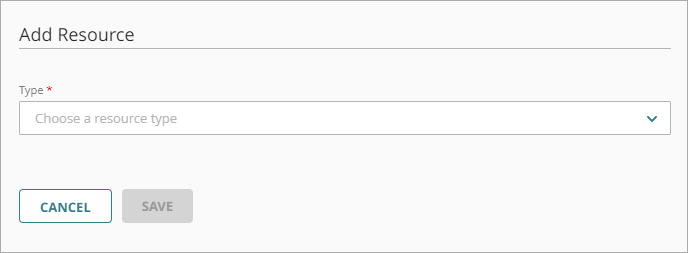
The Add Resource page opens.
- From the Type drop-down list, select SAML.
Additional fields appear.
- On the SAML page, in the Name text box, type a name for this resource.
- From the Application Type drop-down list, select Concur.
- In the Service Provider Entity ID text box, paste the entityID value you copied in the previous section.
- In the Assertion Consumer Service text box, paste the AssertionConsumerService Location value you copied in the previous section.
- From the User ID sent on redirection to service provider drop-down list, select Email.
- In the Logout URL text box, paste the SingleLogoutService Location value you copied in the previous section.
- From the Signature Method drop-down list, select SHA-256.
- From the AuthPoint Certificate drop-down list, select the AuthPoint certificate to associate with your resource. This must be the same certificate that you downloaded the metadata for in the previous section.
- Click Save.
Add a Group in AuthPoint
You must have at least one user group in AuthPoint to configure MFA. If you already have a group, you do not have to add another group.
To add a WatchGuard Cloud-hosted group to the WatchGuard Cloud Directory:
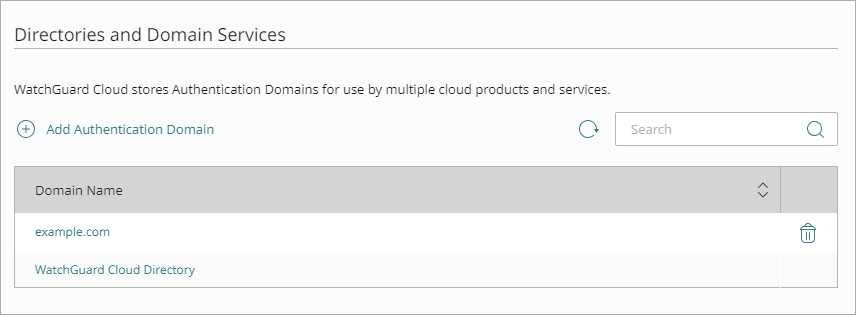
- Go to Configure > Directories and Domain Services.
- Click the WatchGuard Cloud Directory domain name. If you have not yet added the WatchGuard Cloud Directory, click Add Authentication Domain and select the WatchGuard Cloud Directory.
The New Group page appears.
- In the Groups tab, click Add Group.
- In the Group Name text box, type a descriptive name for the group.
- (Optional) In the Description text box, type a description of the group.

- Click Save.
Your group is added to the WatchGuard Cloud Directory and to AuthPoint.
Add a Zero Trust Authentication Policy
Zero Trust policies specify which resources users can authenticate to and which authentication methods they can use (Push, QR code, and OTP).
You must have at least one Zero Trust authentication policy that includes the Concur resource and the IdP portal resource. If you already have Zero Trust authentication policies, you do not have to create a new authentication policy. You can add these resources to your existing authentication policies.
Users that do not have an authentication policy for a specific resource cannot authenticate to log in to that resource.
To configure a Zero Trust authentication policy:
- Go to Configure > Zero Trust. If you have a Service Provider account, you must select an account from Account Manager.
- Click Add Policy.
- Type a name for this policy.
- In the Target section, from the Content drop-down list, select which groups this policy applies to. You can make multiple selections to add multiple groups.
- In the Resources section, select the AuthPoint resources this policy applies to.
- In the Conditions section, select the conditions that apply to this policy. When you add a condition to an authentication policy, the policy applies only to user authentications that match the policy and the policy conditions. For example, if you add a Network Location to a policy, the policy only applies to user authentications that come from that Network Location. Users who only have a policy that includes a Network Location do not get access to the resource when they authenticate outside of that Network Location (because they do not have a policy that applies, not because authentication is denied). For more information, go to About Zero Trust Conditions.
- (Optional) To create a new condition, click Add New Condition. After you create a new condition, you must still add the condition to the policy.
- From the Type drop-down list, select the type of condition to add to the policy.
- From the Name drop-down list, select which condition of the chosen type to add to the policy.
- To add more conditions, repeat Step 6.
If you add conditions to a policy, we recommend that you create a second policy for the same groups and resources without the conditions. Assign a higher priority to the policy with the policy objects. For more information about priority, go to About Zero Trust Policy Precedence.
- In the Action section, select an option to specify whether to allow or deny authentications for the resources in this policy. In our example, we want to allow authentications.
- Allow — Allow user groups in this policy access to the resources associated with this policy.
- Deny — Deny authentications when users in the groups associated with this policy try to authenticate to the resources associated with this policy.
- If you allow access with this policy, select the check box for each authentication option users can select when they authenticate to resources in this policy with MFA.
For SAML resources, if you select more than one authentication option, users must select one of the available options when they authenticate. For example, if you select OTP and Push, users can choose to type their OTP or approve a push to authenticate. You cannot require that they do both.
- Click Save.
Your policy is created and added to the end of the policy list. - Review the order of your policies and adjust as necessary. For more information about priority, go to About Zero Trust Policy Precedence.
Add Users to AuthPoint
Before you assign users to a group, you must add the users to AuthPoint. There are two ways to add AuthPoint user accounts:
- Sync users from an external user database
- Add WatchGuard Cloud-hosted AuthPoint users
Each user must be a member of a group. You must add at least one group before you can add users to AuthPoint.

To import users from Active Directory, Microsoft Entra ID, or an LDAP database, you must add an external identity in the AuthPoint management UI. External identities connect to user databases to get user account information and validate passwords.
- To sync users from Active Directory or an LDAP database, you must add an LDAP external identity
- To sync users from Microsoft Entra ID, you must add a Microsoft Entra ID external identity
When you sync users from an external user database, you can sync any number of users and they are all added to AuthPoint at one time. Users synced from an external user database use the password defined for their user account as their AuthPoint password.
To learn how to sync users, go to Sync Users from Active Directory or LDAP and Sync Users from Azure Active Directory.
You create WatchGuard Cloud-hosted users and groups from the WatchGuard Cloud Directory in WatchGuard Cloud. Directories and Domain Services is where you add shared authentication domains for WatchGuard Cloud devices and services, such as AuthPoint.
Users that you add to the WatchGuard Cloud Directory are automatically added to AuthPoint as well.
You add local AuthPoint users form Directories and Domain Services. You manage the users in AuthPoint on the Users page.
When you add WatchGuard Cloud-hosted AuthPoint users, you choose whether the user is an MFA user or a non-MFA user.
- MFA users are user accounts that will use AuthPoint multi-factor authentication to authenticate. This is not related to the AuthPoint Multi-Factor Authentication license type.
- Non-MFA users are users that will only ever authenticate with a password, such as a service account user. Non-MFA users do not consume an AuthPoint user license and cannot authenticate to resources that require MFA. They can only authenticate to protected resources if the non-MFA user account has a password only authentication policy for that resource.
After you add a user, you can edit the user account if you need to change their account type. When you change a user account from MFA to non-MFA, AuthPoint deletes the tokens and password vault (if applicable) that belong to the user. This action cannot be undone.
Unlike users synced from an external user database, WatchGuard Cloud-hosted AuthPoint users define and manage their own AuthPoint password. When you add a WatchGuard Cloud-hosted user account, the user receives an email that prompts them to set their password.
To learn how to add WatchGuard Cloud-hosted AuthPoint user accounts to the WatchGuard Cloud Directory, go to Add Local Users to an Authentication Domain.
Test the Integration
To test AuthPoint MFA for Concur, you can authenticate with a mobile token on your mobile device. For SAML resources, you can choose any authentication method (for example, push, QR code, or one-time password).
In this example, we show the push authentication method (users receive a push notification in the mobile app that they must approve to authenticate).
To test the integration:
- In a web browser, go to the SAP Concur portal.
- Type your Concur user email address.
- Click Next.
- Choose to sign in with AuthPoint. This is the custom identity provider that we created in the previous section.

- Type your email address or AuthPoint user name.
- Click Next.
- In the Password text box, type your password.
- For the authentication method, click Send Push.
- Approve the authentication request that is sent to your mobile device.
You are logged in to the Concur Portal.